Guides
How to block Instagram on iPhone at night
Set an evening cutoff with Apple’s Screen Time or use an IBlock routine to block your selected apps overnight.

Set an evening cutoff with Downtime
On iOS 26, open iPhone Settings → Screen Time and turn on App & Website Activity if needed. Open Downtime, turn on Scheduled, and choose Every Day or Customize Days. Set your start and end times, for example 10:30 p.m. to 7:00 a.m. Downtime restricts most apps, so check Always Allowed to keep essentials available and leave Instagram off that list. To enforce the restriction, tap Lock Screen Time Settings at the bottom of Screen Time and set a passcode. Then turn on Block at Downtime in Downtime settings.
Set a daily Instagram limit with App Limits on iOS 26
In iPhone Settings → Screen Time → App Limits, tap Add Limit. Expand the social networking category, select Instagram, tap Next and set a daily allowance, such as 20 minutes. Use Customize Days if you want a different amount on weekends, then save. The allowance counts usage throughout the day. Your time could run out before dinner, or still be available at bedtime. By default, Screen Time lets you ignore a limit when you reach it.
Find the equivalent controls in iOS 27
On iOS 27, go to Settings → Screen Time → Screen Time Schedule. Turn on Schedule, add the days you want and set an evening time window. Check which app categories and allowances are available during that window. Apple documents the exact options in its iOS 27 guide below.
Schedule your selected apps with an IBlock routine
In IBlock, go to Settings → Blocked apps and select Instagram. Grant Screen Time access if iOS asks. Open the Routine tab, tap Create routine or Add routine, and name it Bedtime. Pick the repeat days, set the start and end times, then tap Save & enable and confirm. Downtime starts with most apps restricted. IBlock uses your shared Blocked apps list for every routine, so select just Instagram to have IBlock block that app while leaving your other apps available. Routines are included in IBlock’s paid plans.
Choose the start day for an overnight routine
For a routine that runs past midnight, select the day it starts. For example, to block Instagram from Saturday at 10:30 p.m. until Sunday at 7 a.m., select only Saturday and enter those hours. After 7 a.m. on Sunday, try opening Instagram again to check that the block has ended.
Check the first evening
Try opening Instagram after the routine begins and check that an app you need, such as Messages, still opens. The routine starts when iOS applies the restrictions. Check again shortly after the scheduled start if the block has not appeared yet. If Instagram still opens, check the routine’s days and hours, the Blocked apps list and IBlock’s Screen Time permission in iPhone Settings. Selecting Instagram in IBlock blocks the app itself. If you use Instagram in a browser, that browser stays available unless you also select it.
End a running routine early if needed
Open IBlock → Settings → Emergency Mode to end the current routine session. You can use Emergency Mode twice in any seven-day period. Future scheduled sessions stay enabled.
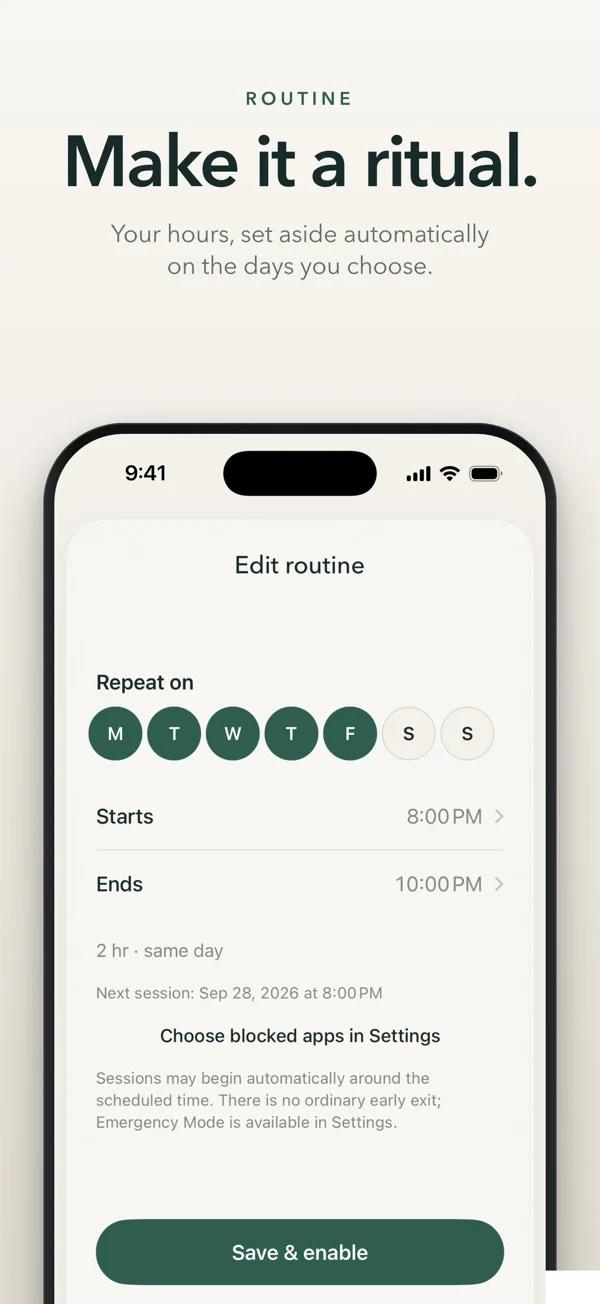
Schedule your evening with IBlock
Pick the iPhone apps you want to pause, choose a duration, and slide to start. Use Routines to repeat the same block at the times you choose.
View on the App StoreFor iPhone with iOS 26 or later. Focus sessions and Routines require IBlock Premium.