Guides
IBlock vs. Opal vs. Apple Screen Time
Choose IBlock for a slide-to-start focus session, Opal for more granular rules, Apple Screen Time for built-in limits, or one sec for a pause before opening an app.
Published by BRM, the maker of IBlock.

IBlock for a focus session you start now
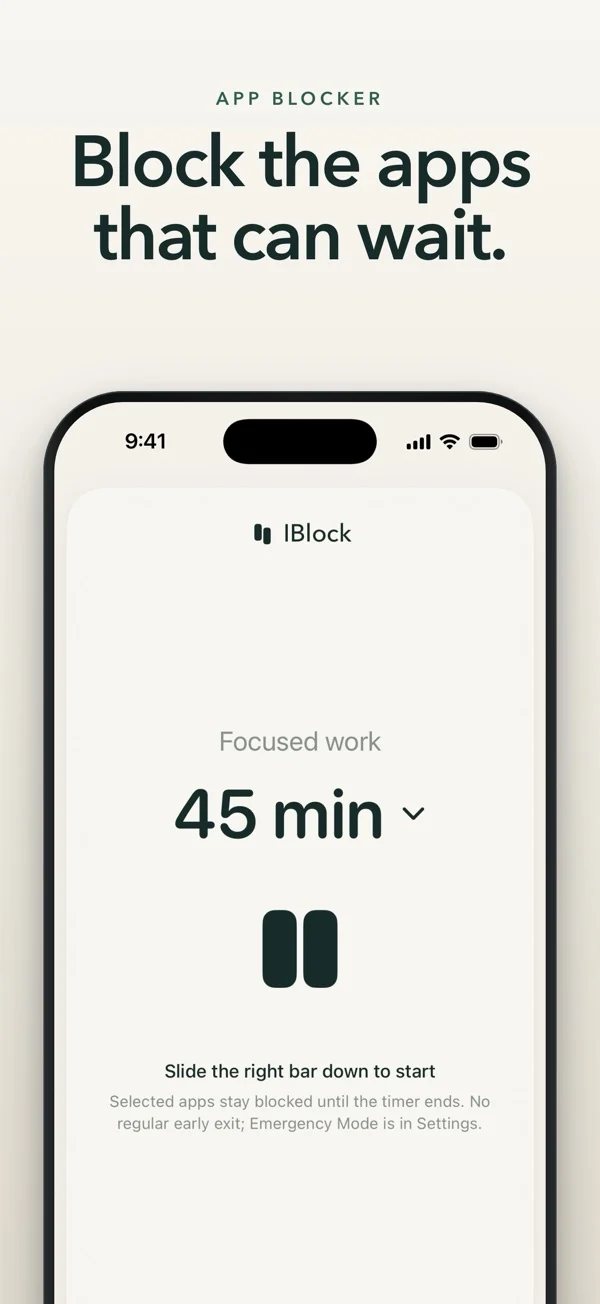
IBlock is a good fit if you want to set aside the same distractions each time you sit down to work, study or read. After you select your apps once, choose a duration and slide the bar down until it snaps into place. That gesture starts the block, and apps outside your selection remain available. You can also schedule up to six named routines, each with its own days and hours. All six use the same app selection as your manual sessions.
What to know before choosing IBlock
IBlock requires iOS 26 or later on iPhone and permission to use Apple’s Screen Time controls. The download is free. Sessions, routines and reports require a paid plan. Manual sessions range from 15 minutes to 8 hours. A running session has no ordinary stop button. Emergency Mode can end a session early twice in any seven days. Reports show completed focus time over the last seven days.
Opal for different rules across your day
Opal also has an on-demand timer and scheduled blocks. Its rules can use different app or website selections, so you can block social media during work and allow only a few essentials at bedtime. Choose Opal if you want daily usage limits, limits on how often you open an app, or different levels of resistance when you try to unblock something.
Apple Screen Time for built-in limits
Start with Screen Time if you mainly want a daily app limit or a schedule managed directly in Settings. On iOS 26, Apple documents App Limits and scheduled Downtime with exceptions for apps and contacts. On iOS 27, Screen Time adds customizable time windows and usage allowances for categories such as games or social media. Apple also provides parental controls through Family Sharing.
one sec for a pause before you scroll
Choose one sec if the problem is opening an app out of habit and you still want the option to use it. It can interrupt you as you open the app, after a short period of use, or ask you how long you intend to spend. It also supports manual and scheduled blocks when you want to restrict access altogether.
How we compared them
We checked App Store listings and public documentation on November 5, 2026. The comparison covers documented features and workflows. Timing and side-by-side device tests are outside its scope.
Start your next focus session with IBlock
Pick the iPhone apps you want to pause, choose a duration, and slide to start. Use Routines to repeat the same block at the times you choose.
View on the App StoreFor iPhone with iOS 26 or later. Focus sessions and Routines require IBlock Premium.
Related guides
Sources and help
- IBlock on the App Store
- IBlock on the French App Store — Session durations
- Opal Help Center — Timer
- Opal Help Center — Schedules
- Opal Help Center — Time Limits
- Opal Help Center — Open Limits
- Apple Support — Screen Time on iOS 26
- Apple Support — Screen Time schedules and allowances
- Apple Support — Parental controls
- one sec Help Center — Intervention modes
- one sec Help Center — App and website blocks
- Support